How to edit real estate photos with AI
Start with Enhance in Pixly's Photo AI: add the photo and click Enhance. In about half a minute you get three versions with the light, colour and sharpness fixed — pick the one you like. Then fix what's left on that photo: Sky Replacement for a grey sky, Lawn Replacement for a patchy lawn, Declutter for a messy room. Each costs 1 credit.

These are the real Enhance screens. Click a step to jump to it.
- 4 steps
- About a minute per photo
- 1 credit per photo
The four steps
- 01
Open Enhance
In Pixly, go to Photo AI and pick Enhance under Finish. It works on any photo, inside or out.
- 02
Add your photo
Upload it, drag it onto the page, paste it, or choose one from your library. Dark, flat or dull photos gain the most.
- 03
Click Enhance
The button shows the price: 1 credit for three versions. It usually takes 20–40 seconds.
- 04
Pick the best version and save it
The versions sit under the result. Compare each with the original, save the best one, or upscale it to HD for free with HD Upscale.
The steps on one page
Save it, print it or send it to your team.

Then fix what each photo needs
Every photo has its own problem. Each tool below fixes one — these are their own examples, on different homes.
 BeforeAfter
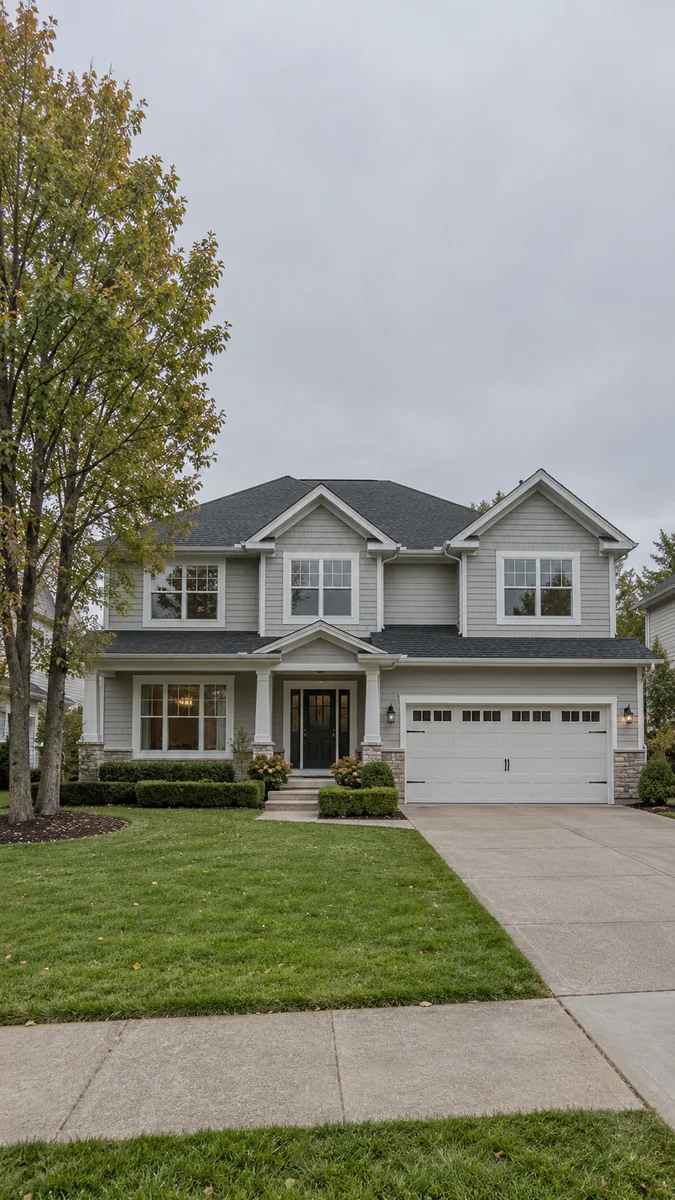
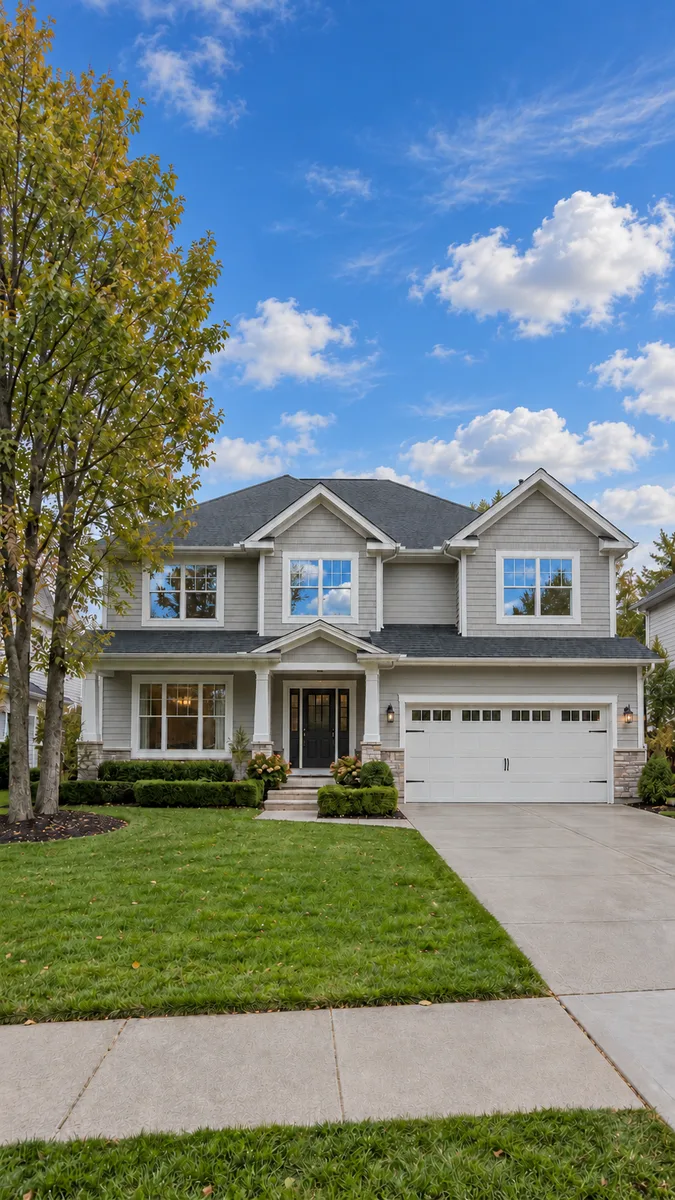
A grey, washed-out sky
Sky Replacement puts a clear blue sky behind the house; the house, trees and lawn stay as photographed.
How it works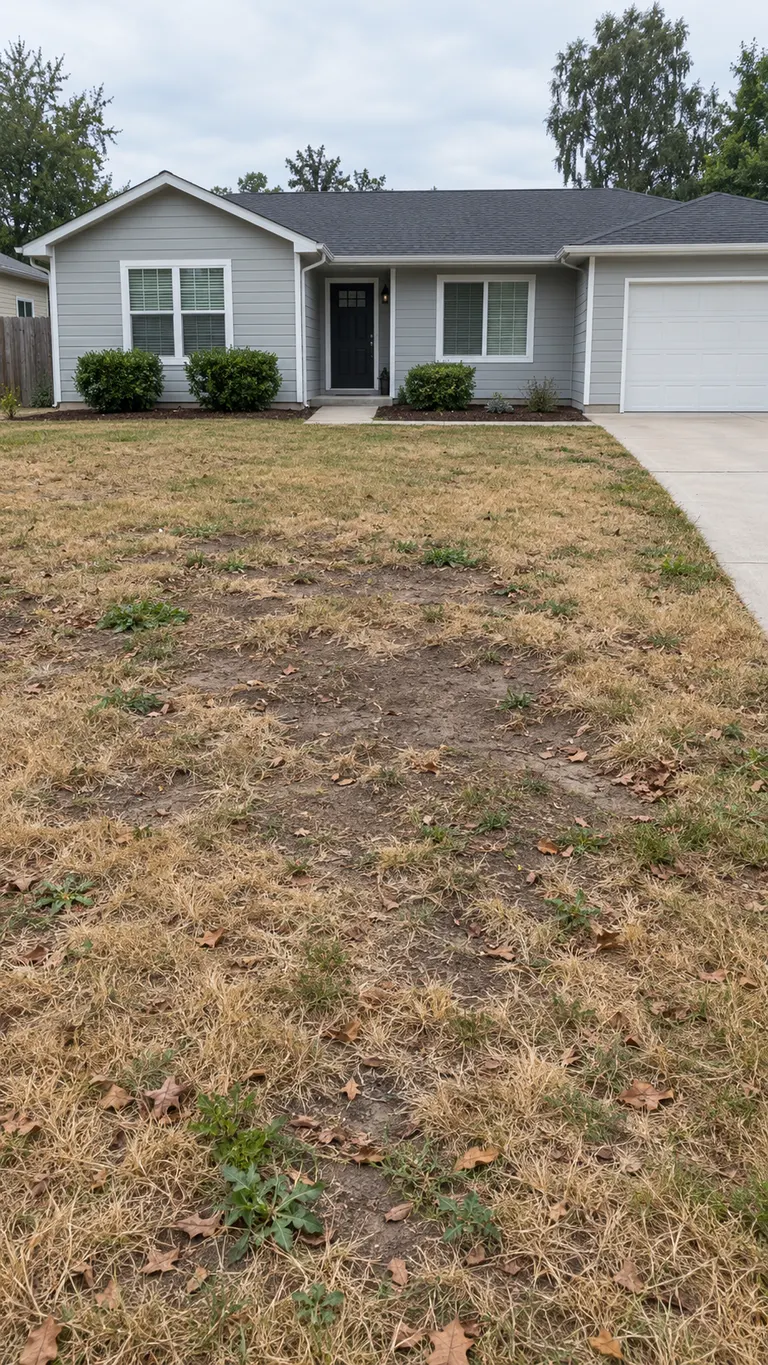
 BeforeAfter
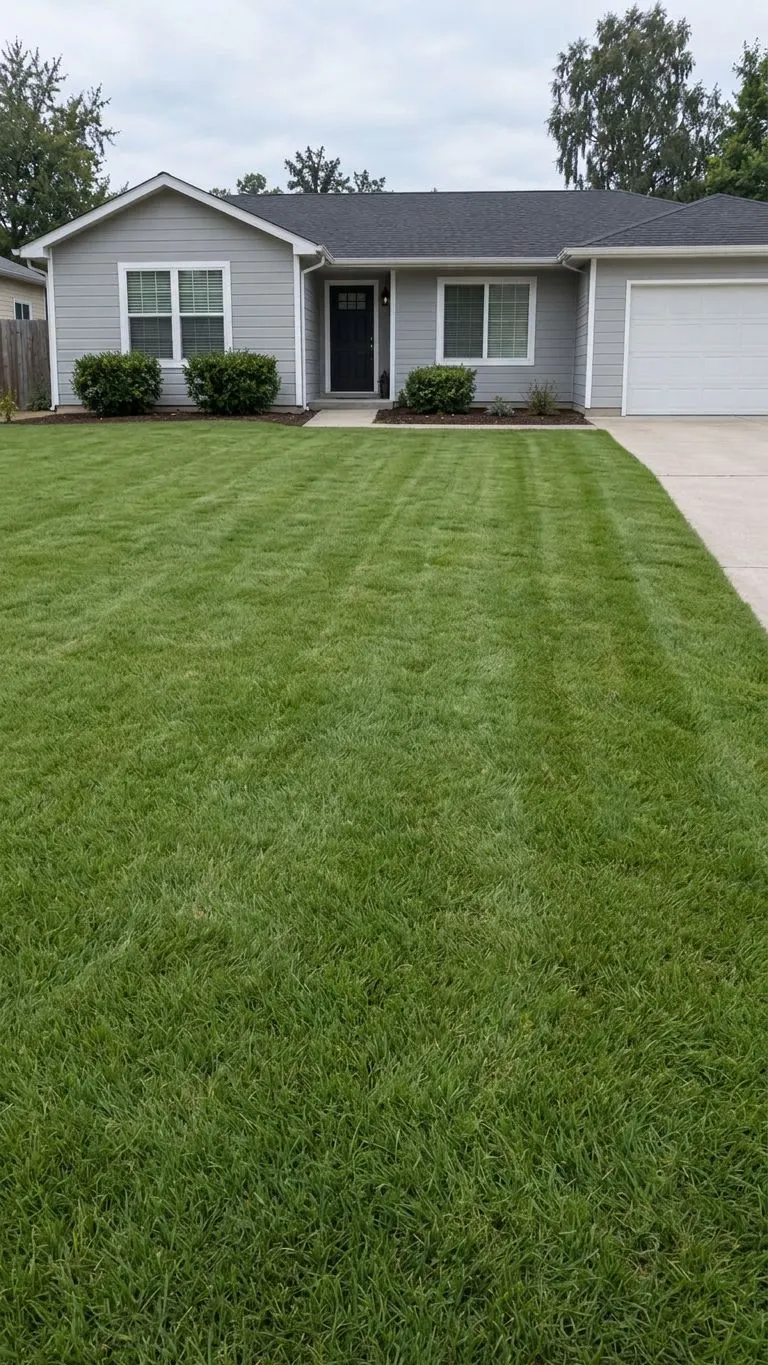
A brown, patchy lawn
Lawn Replacement turns the grass green and even; only the lawn changes.
How it works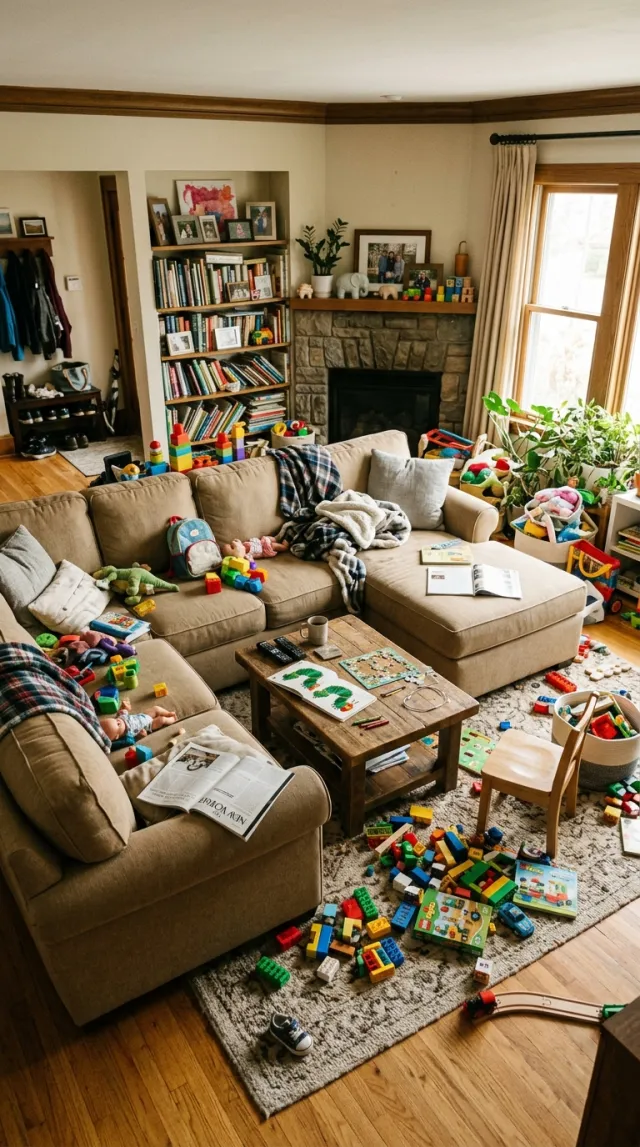
 BeforeAfter
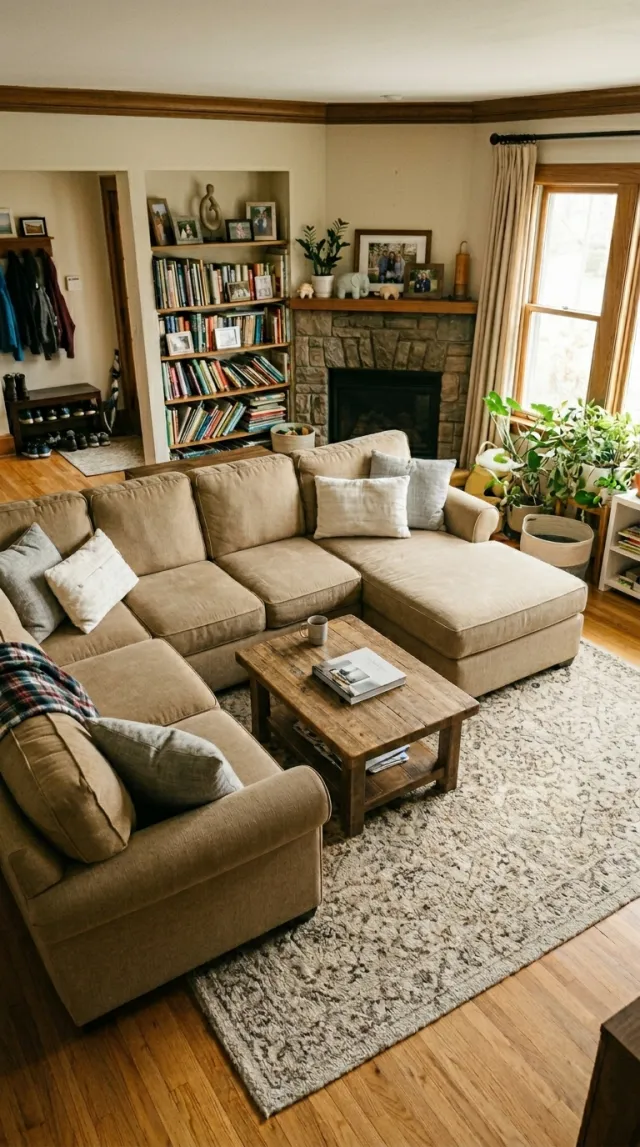
A messy room
Declutter takes toys, papers and personal items away and keeps the furniture.
How it works
 BeforeAfter
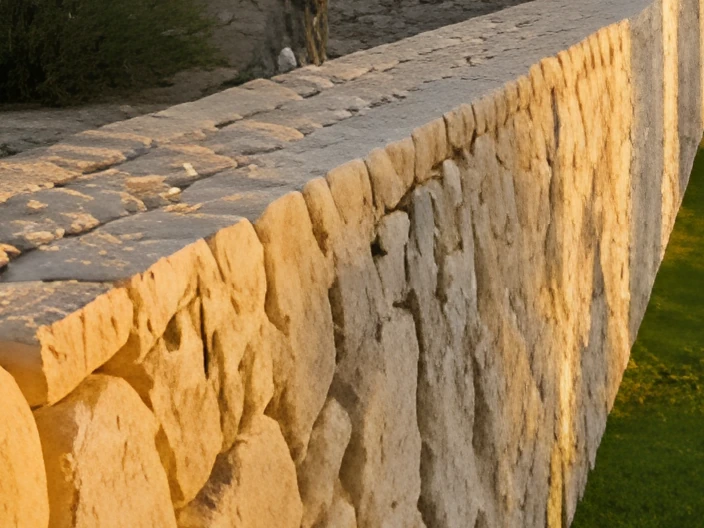
A small or soft photo
HD Upscale enlarges it up to four times with real detail — free on any result Pixly made.
How it worksPhotos that work best
- Shot in daylight, with the lights on in dark rooms.
- Level and straight — the free Straighten Photo tool fixes tilted walls first.
- The original, full-size file rather than a screenshot.
- One fix per run: enhance first, then sky or lawn on the result.
What to avoid
- Running everything on every photo — fix only what that photo needs.
- Changing what buyers will see in person, such as hiding damage.
- Very blurry or tiny photos: they lose detail no tool can bring back.